Google Workspace Training / User / Calendar
Manage events
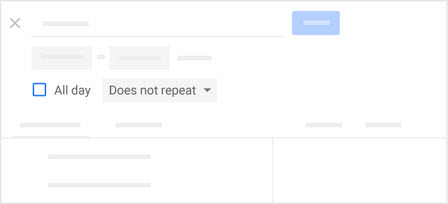
Create repeating events
Single-click your event and click Edit

 .
.Open your event and at the top next to All day, click Does not repeat.
Choose how often you want the event to repeat.
If you want to choose an end date, click Custom and enter your start and end dates.
Click Save.
Email guests from a Calendar event
The event organizer and event guests can quickly email everyone invited to the event directly from Calendar.
- Single-click the event.
- At the top, click Email guests
 .
. - Add your message. You can also add other recipients and change the subject if you want.
- Click Send.

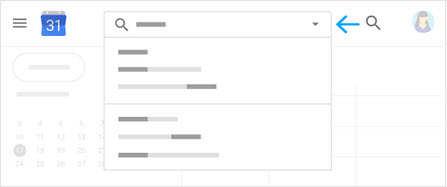
Find an event
- In Calendar, at the top, click Search
 .
. - Enter a search keyword. Results appear as you enter text and you might see results from other Google Workspace services, such as Gmail and Drive.
- (Optional) To see advanced search options, in the search bar, click the Down arrow. Enter your search query and click Search.
- Click a search result to see the details for that event.
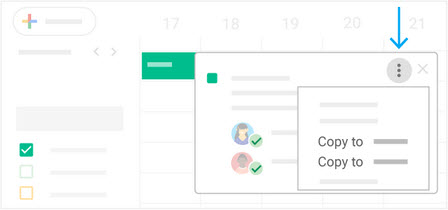
Copy an event to a different calendar
You can copy an event from one of your calendars to another.
- Single-click the event you want to copy.
- At the top, click More
 > Copy to calendar name. The event automatically appears in the calendar.
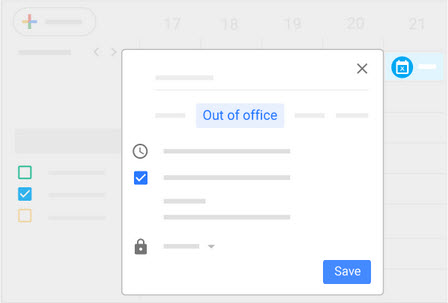
Decline events during out-of-office dates
Out of office
Set an out-of-office message that will automatically decline all meetings during that time.
- In your calendar grid, click the first day that you’re away from work.
- Click Out of office and select a time period.
- (Optional) To explain you’re away from work, enter a message in the Decline message section.
- In the Visibility section, choose an option:
- Public
- Default visibility
- Private
- Click Save. Any new and existing meetings during this time will be automatically declined.
Restore a deleted event
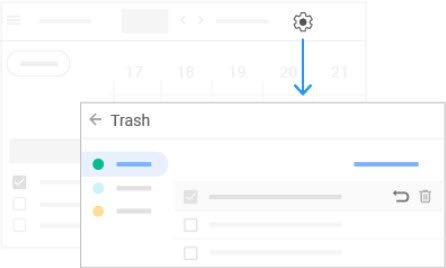
- Click Settings
 > Trash.
 - Check the box next to the deleted event and click Restore
 .
.
Note: Deleted events are kept in the Trash for 30 days before being permanently deleted.
 Microsoft OneDrive