Access a Network Drive
There are several places where you might choose to use a network drive. Some examples include:
- The Source or Target Platform (i.e. direct access to the mail store of a Kerio server, or locally stored files such as PST, EML or PDF)
- Location of detached attachments that exceed size limits of the target system (configured under Basic Options)
- Location of deduplication files (configured under Basic Options)
Important:
When accessing a network drive, keep in mind the following considerations:
You must use a UNC path (i.e.: \servername\foldername) rather than a mapped drive letter
You must change the logon account for the Transend Agent Email Migration service. To do that:
- Click Start > Run to open Windows Services
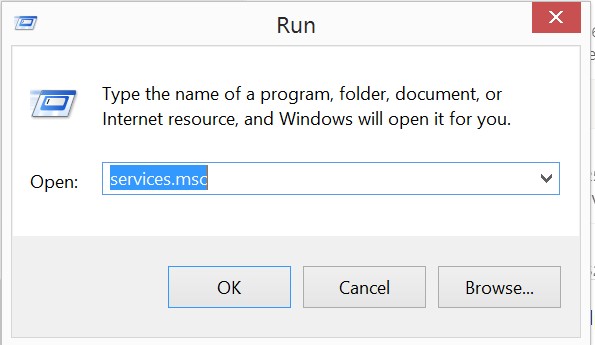

Find and then double-click on Transend Agent Email Migration
Click on the Logon tab
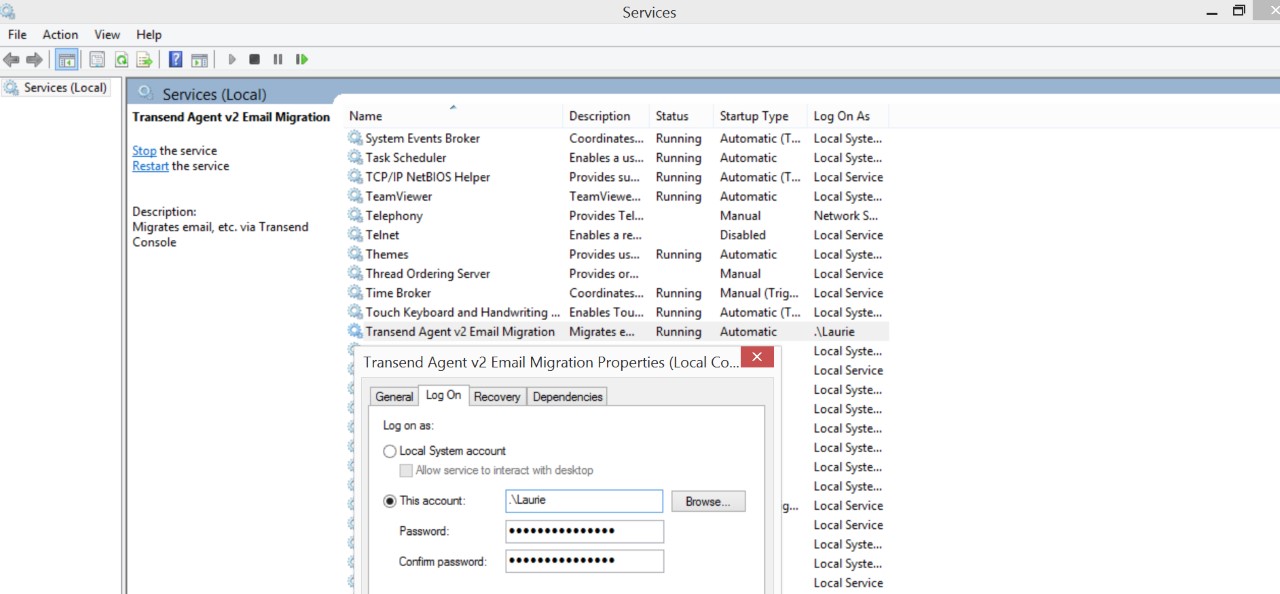
Change from the Local System account to a user account. The user’s account may be a Windows domain user or a local machine administrator account that has access to the desired UNC file share
Enter the username and password, then click OK
Restart the Transend Agent Email Migration service
If you have multiple Remote Agent machines, apply the same change to each of them
 Microsoft OneDrive