Home / Product Setup & Usage / Configuration
Define Drives
Use the Define Drives page to identify the shared drives that contain files you plan to migrate.
Drive IDs
Google Shared Drives
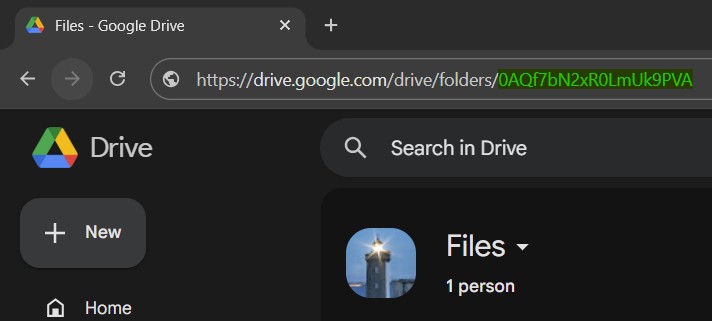
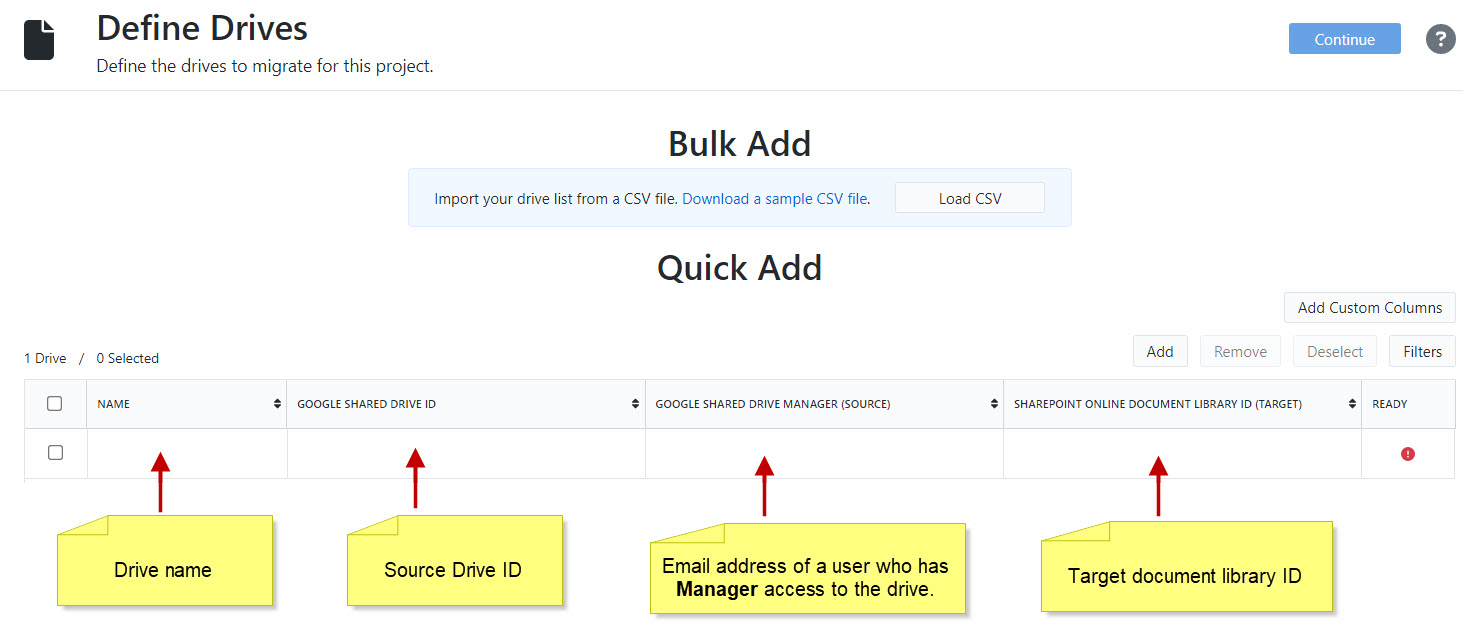
Provide drive identifiers (IDs) in the relevant columns. For Google Shared Drives, this is the string of characters at the end of the Shared Drive’s URL.
Example:
In the Google Shared Drive Manager column, enter the email address of a user who has Manager access to the drive.
SharePoint
SharePoint Online document library IDs are in the following format:
b!XqYV8wtZv6HrOGnntwbqI2fSEEAFVWb-CGi5fpIXapJJmlPhGWpsKyJjYK0dkcRo
Unfortunately, Microsoft does not provide a way to get the document library identifier via the UI, so this will need to be collected via API tools (collection scripts).
Drive ID Collection Scripts
To make drive IDs easier to obtain, use the below collection scripts that allow you to programmatically obtain shared drive IDs.
Quick Add
The Quick Add section is handy for projects with a small number of drives. Manually fill in the required information for each column. Incomplete rows are indicated by a red error icon in the last column.
Bulk Add
If you have many drives, download a CSV template by clicking the Download a sample CSV file link. You can either use your own tooling to generate a list of drives in that format or collaborate with other admins to update the file.
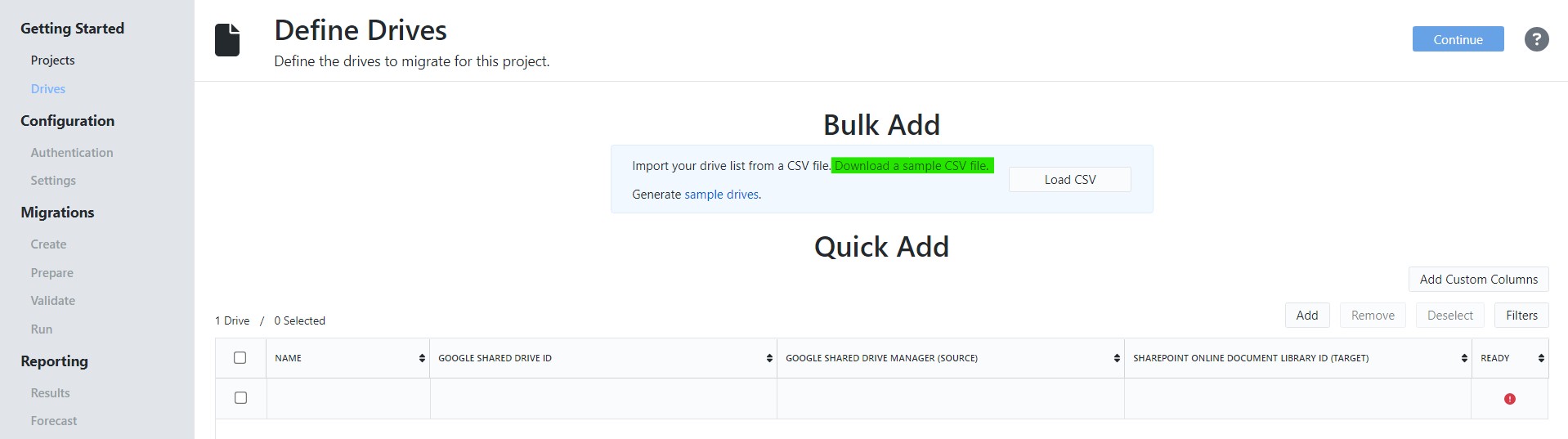
If you already have drives added to the table and attempt to perform a bulk add, you will have the option to remove duplicates, which is the recommended practice.
When you have finished adding drives to the table, click Continue to move to the next step.
Add Custom Columns
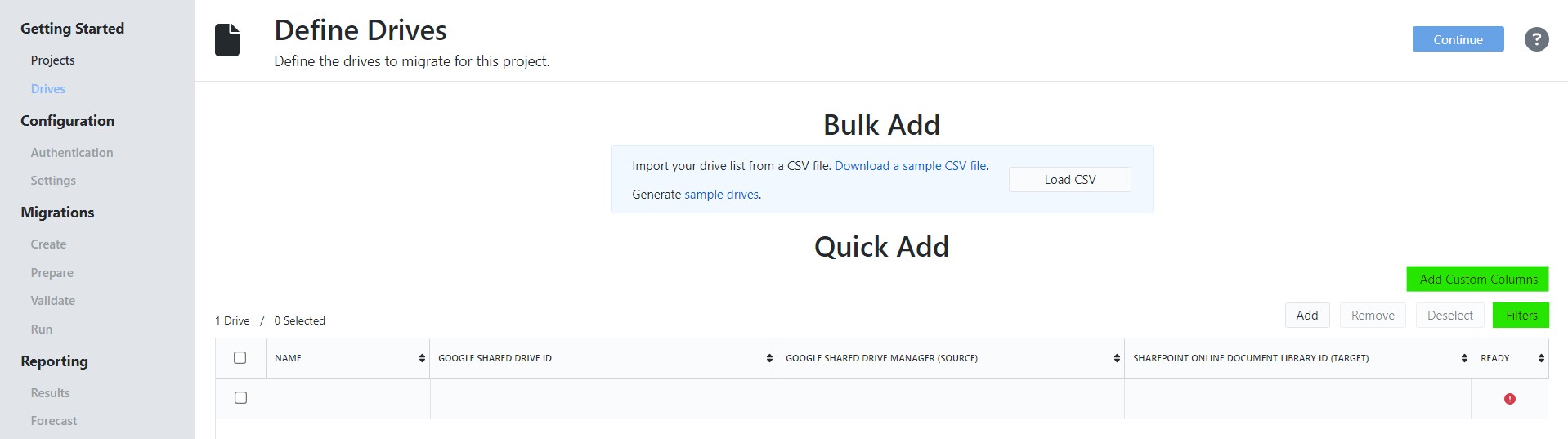
You may optionally add custom columns by clicking the Add Custom Columns button. Adding custom columns can be a useful way to organize your drive list into different batches.
We have included some frequently used columns that can be selected, or you may add column names of your choosing by entering them into the Other field. Click Add and then Save to return to the drive table.
Filters
Select a filter to display only the drives that match the selected criteria.
 Microsoft OneDrive