Home / Product Setup & Usage / Configuration / Troubleshooting
Debugging
When troubleshooting an issue, Transend Support may recommend you enable Debugging mode so they can obtain more information about your migration issue or error.
Note: The following instructions only apply to the 3.x build of Transend Migration Console. See instructions at bottom of page for 2.x debugging steps.
To enable Debugging mode, follow these steps:
- Clone your Configuration.
- On the Configuration > Settings screen, select the Mailbox Options tab at the top.
- Check the “Show hidden options” checkbox.
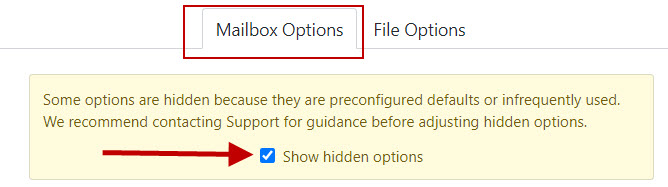
- In the General section, check the Use item-level logging box to debug issues related to all mailbox data types.

- In addition to providing log files to Tech Support, also send the contents of the debug directory (C:\ProgramData\Transend\tmagent\debug).
Important!
After you enable Debugging mode, you must run another migration job for the log files to capture debugging information.
Debug only specific data types
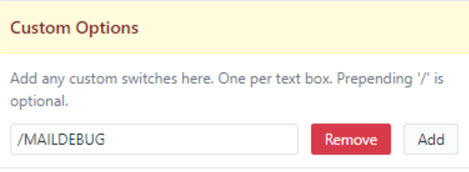
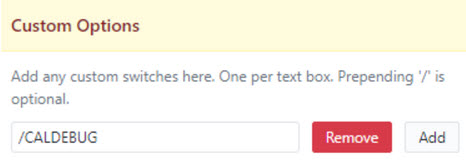
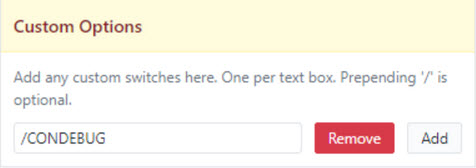
Alternatively, when directed by Transend Support, enter one of the following custom options in the Custom Options field to debug only a specific data type:
Note: When debugging only specific data types, leave the Use item-level logging box unchecked.
Debug Email only:
-
/MAILDEBUG
Debug Calendars only:
-
/CALDEBUG
Debug Contacts only:
-
/CONDEBUG
Debug Files only:
-
/RCDEBUG

Important!
After you enable the appropriate debugging options, you must run another migration job for the log files to capture debugging information.
Debugging 2.x (and earlier)
To enable Debugging mode in v2.x and earlier, follow these steps:
-
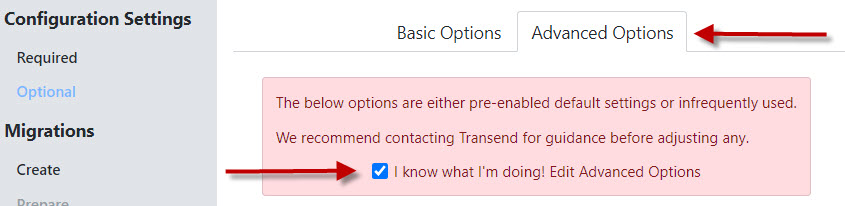
On the Configuration Settings > Optional screen, select the Advanced Options tab at the top.
-
Check the “I know what I’m doing! Edit Advanced Options” checkbox.
-
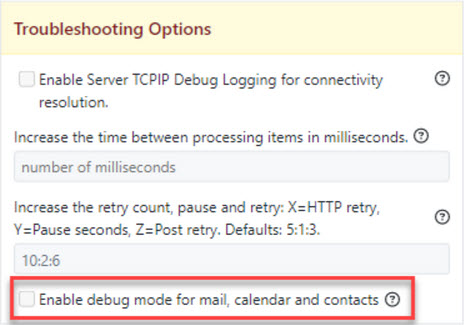
Check the box as shown below in the Troubleshooting Options section to debug issues related to all mailbox data types.
-
In addition to providing log files to Tech Support, also send the contents of the debug directory (C:\ProgramData\Transend\tmagent\debug).
Important!
After you enable Debugging mode, you must run another migration job for the log files to capture debugging information.
Debug only specific data types
Alternatively, when directed by Transend Support, enter one of the following custom options in the Custom Options field to debug only a specific data type:
Note: leave the box for all data types above unchecked!
Debug Email only:
-
/MAILDEBUG
Debug Calendars only:
-
/CALDEBUG
Debug Contacts only:
-
/CONDEBUG
Debug Files only:
-
/RCDEBUG
Important!
After you enable the appropriate debugging options, you must run another migration job for the log files to capture debugging information.
 Microsoft OneDrive