Home / Platform Considerations / Google Workspace
Migrate from Google Vault
Google Vault is an optional service offered by Google, which stores various types of data (i.e. email, group messages, and calendar) into a separate data repository that is not accessible to end-users by default, and can only be accessed by domain administrators, or users who have been given specific permission to access data in Google Vault. Typically, Google Vault is used to locate data necessary for legal or compliance matters.
In many situations, the administrator will use Google Vault to search across multiple user accounts, looking for certain keywords or email addresses. Search results can be exported through the Google Vault UI to a Microsoft PST file, or a standard MBOX file.
Transend Migration Console is useful if you want to extract data on a per-user or batch basis, and store the results in individual PST or MBOX files.
API’s and Permissions
To migrate data from Google Vault with Transend Migration Console, you must set up a Google Service Account for your organization. In addition to the steps defined in the Google Service Account documentation, the following modifications are necessary.
Modify your Google Service Account
After you have set up your Google Service Account, you must modify it by following these steps:
-
Navigate to console.developers.google.com and sign in.
-
Select Enabled APIs and Services.
-
At the top of the page, select the project you previously set up, (i.e. “Transend Migration Console”).
-
Click Enable APIs and Services.
-
In the Search box, enter “Google Vault API” and press Enter.
-
Click on the resulting choice and press the Enable button.
-
Navigate to admin.google.com and sign in.
-
Select Security, Access and Data Control, API Controls.
-
Select the Manage Domain Wide Delegation link.
-
Find the API Client that you set up for Transend Migration Console and click Edit.
-
Add the following scopes:
Highlight the below scopes and click Ctrl-C to copy the scopes into Notepad, into a single line comma delimited. Then paste it from Notepad into the OAUTH Scopes field.
Important: To maintain proper encoding you must use Ctrl-C when copying scopes. If you right click to copy you will lose important characters like commas and colons.
https://www.googleapis.com/auth/ediscovery,https://www.googleapis.com/auth/cloud-platform.read-only
-
Select Authorize.
Note:
- The Vault admin account must be a licensed Google user.
Configure Transend Migration Console
After setting up and modifying your Google Service Account, configure Transend Migration Console to migrate data from Google Vault by following these steps:
-
When creating your project within Transend Migration Console, select the source system as Google Vault (not Google Archive).
-
Select Admin Credentials.
-
Select as the target either MBOX or Outlook PST.
-
If you select Outlook PST as the target, in the user entry screen, instead of entering a specific Outlook PST file name, enter instead the directory where you would like the PST files created. Transend Migration Console will create a PST file based on the source username. All users should be set up with the same target directory.
-
Similarly, if you select MBOX as the target, in the user entry screen, you will enter the directory name where the MBOX files should be stored. You can use the directory picker button to select, instead of typing directly.
-
Regardless of the target selection, the Google email address will consist of the individual user email that you want to export data from. If you are exporting Google group data, you should put the email address of the group (see possible modification below under /D244D).
-
In the Transend Migration Console configuration screen, you will enter your Google Service Account email and .p12 key file as documented here under “Enter credentials into Transend Migration Console”.
-
When you begin a migration, be aware that the export and download process does not return progress information frequently (if at all). Therefore, the migration status screen will probably show no progress for each user until it is complete.
-
After each migration is complete, the target directory will contain either an MBOX or PST file, with the name of the Google user (or group) as the file name (group files will also have a numeric counter appended, to account for possible multiple files). There will also be a .csv file for each user, containing meta data (Subject, Date, etc.) for each email.
Optional Configuration Settings
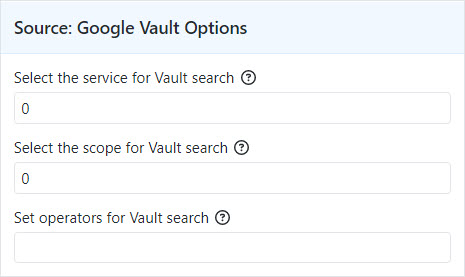
There are a few options that change default behavior, available in the Optional Configuration Settings screen, Basic Options tab.
Important!
When entering data into configuration setting fields, we recommend that you don’t copy/paste from any online documentation, but rather re-type the data to ensure proper encoding.
Select the service for Vault search
-
This allows you to specify which Google service is exported. Options are: 0=Mail (default), 1=Groups. Note that other than the exception described below, you cannot mix users and groups within the same configuration. If you select Mail and enter a Group email address, it will fail, and vice versa.
The exception is that if you put the prefix “group.” in front of the email address, Transend Migration Console will recognize the address as being from a group and strip the prefix. For example, if the group email address is [email protected], use [email protected]. If you intend to mix user and group addresses using this method, do not use /D244D (i.e. keep the default value of 0).
Note that when doing an export from a group address, Google divides the output into multiple files when necessary, but always appends a numeric value to the file name.
Select the scope for Vault search
- This allows you select the data scope of exported data. Options are: 0=All Data (default), 1=Held Data, 2=Unprocessed Data. See Google’s Vault documentation for further details.
Set operators for Vault search
- The value of (query string) can be used to select a subset of messages to export. For details, see this Google technote.
 Microsoft OneDrive